



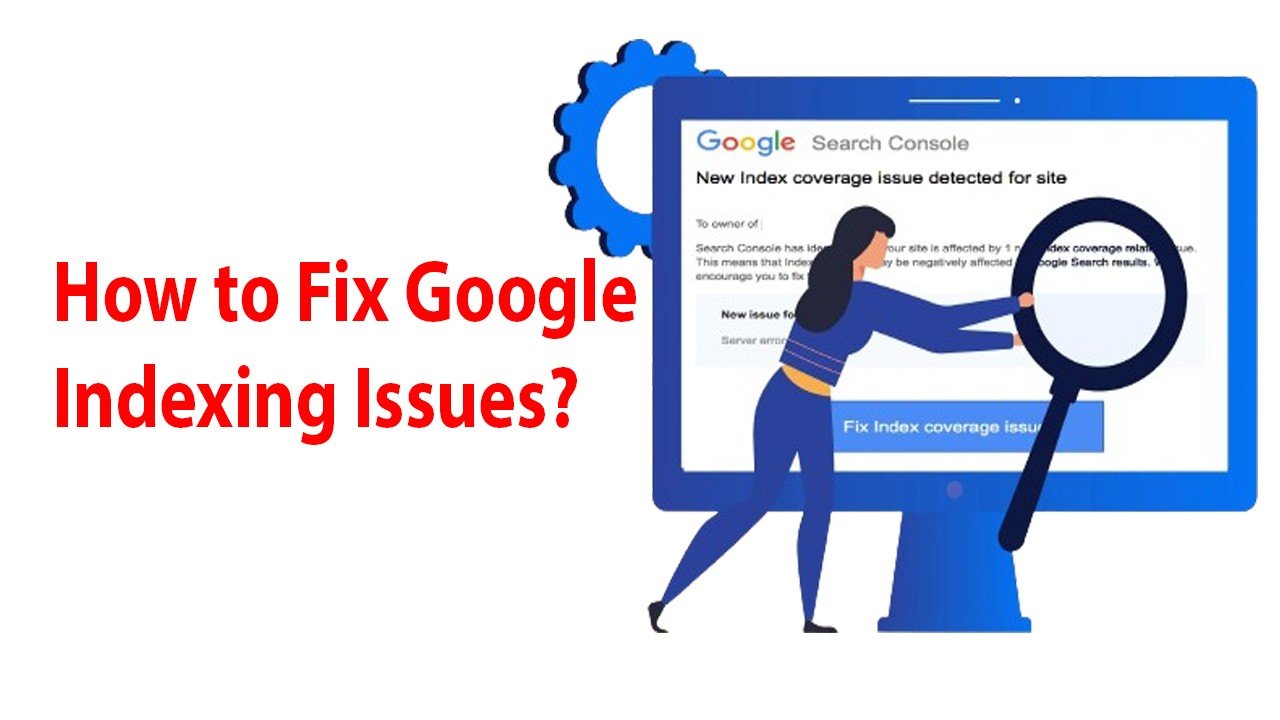
Google Search Console is the platform where you will address website indexing problems. There are also indexing problems that can occur with your website and keep your pages out of Google’s search results. There may be instances where your site will not be ranking organically even though you have great content, if you don’t get the indexing right with Google. Understanding how to resolve website indexing issues in Google Search Console can aid in pinpointing technical issues and enhancing website visibility.
Google Search Console offers reports on indexed pages and which pages have issues. You’ll learn how to fix the common Google indexing issues in this guide, identify website indexing errors, and understand how to improve your website’s technical SEO.
What Are Website Indexing Issues?
Website indexing issues are the problems that arise during the indexing of a website.
The website indexing problem is when Google can’t get your webpage into its search engine or chooses not to. Crawling would be the process in which Google finds and fetches a page and indexing would be where Google processes the page and is ready to display results for it.
All pages don’t have to be indexed. However, it is still worth to have important service pages, product pages and blog posts available and eligible to be indexed.
1. Check Your Website Indexing Status in Google Search Console
The first step is to grasp the reason behind your pages not showing up on Google. Google Search Console indexing issues can be investigated by reviewing the indexing status of your website.
Log in to Google Search Console and choose your website property. Click on Page under Indexing. This report displays the indexed pages, not indexed pages, and reports the reason for not being indexed.
Use the URL Inspection tool to inspect a single webpage or to see what Google has reported about the status of a webpage. Prioritize certain pages over others when indexing.
Reviewing your website indexing status helps you identify Google indexing problems and determine which pages need attention.
2. Check Whether Robots.txt Is Blocking Important Pages
The robots.txt file is a file that instructs the search engine bots about the parts of a site that they can access. Google might not be able to crawl the content of an important page successfully if it is accidentally blocked.
Check your robots.txt file for any pages that are disallowed that may be important. For WordPress users, check your WordPress SEO plugin settings and other settings that could impact your crawling.
Only remove restrictions when the pages should be accessible to search engines. Keep in mind that robots.txt is not a trusted method to exclude a URL from Google’s index.
Checking robots.txt can help you investigate website indexing problems caused by crawling restrictions.
3. Ensure That Relevant Pages Do Not Have Unwanted Noindex Tags
A noindex directive is a piece of code used to indicate to search engines that the page should not be available in search results. Google might choose not to include an important blog post or service page in the index if it is tagged with noindex.
Look in the page source for a noindex tag or use an SEO tool to check for a noindex. Look at the search visibility settings on the page in WordPress and your SEO plugin’s indexing settings.
If the page would be found in search results, then delete the unwanted noindex directive. Next, look at the URL in Google Search Console.
Reviewing noindex tags is an important step when troubleshooting Google Search Console indexing issues and other website indexing errors.
4. Submit an Updated XML Sitemap
XML sitemap is a document that tells search engines which are important URLs to pay attention to on your website. It is especially helpful for websites that have a lot of pages, or content that is updated often.
Look for a sitemap URL, such as yourdomain.com/sitemap_index.xml, where yourdomain.com is the URL of your website and sitemap_index.xml is the file name for your sitemap. This is likely to be provided by a WordPress SEO plugin. Go to Google Search Console, click on Sitemaps, and enter the appropriate sitemap URL.
Add the canonical URLs of the pages to be indexed to the sitemap. Don’t add redirected URLs, broken pages or noindex URLs.
A sitemap can be submitted to Google for Google to find URLs, but does not mean that every page will be indexed.
Submitting an XML sitemap helps Google discover important pages and can assist with resolving certain website indexing problems.
5. Fix Thin or Duplicate Content
Some pages that do not offer much original content or have a lot of duplicate content may not be indexed by Google.
Check pages that have been reported as discovered, crawled, but not indexed. See if there is useful information on each page that isn’t found on other pages on your site.
Enrich these pages with appropriate information, answers to users’ questions, and avoid repetition. Where it’s feasible, write product descriptions that are informative and unique for ecommerce sites.
Don’t produce pages with nearly the same keywords for no discernable reason. Helpful, original content provides a better user experience and makes each page more valuable.
Improving thin content and duplicate content can help make your website more useful to visitors and support your overall technical SEO strategy.
6. Correct Redirects, Broken Links and Server Errors
Google may not be able to access your content because of technical issues. A page that returns a 404 error does not bring back the content that you requested, and server error can prevent Google from getting a page.
Test affected URLs and verify that they work. In the event of a page having been moved so that it is no longer accessible, redirect to the most relevant replacement page. When updating internal links, make sure they link directly to the appropriate link.
If you get a lot of errors, reach out to your host or developer to determine the cause.
Fixing redirects, broken links and server errors can help resolve technical problems that prevent Google from accessing important pages.
7. Use the URL Inspection Tool
The URL Inspection tool allows you to see how Google interprets a particular page. In the inspection bar at the top of Google Search Console, type the complete URL.
Check the reported crawling, indexing and available information about the selected canonical URL. When available, use Request Indexing after correcting a true problem.
The production of an index does not mean that one is included in search results. Google will still need to crawl, process and evaluate the page.
The URL Inspection tool is useful for investigating individual Google indexing issues and checking whether a page can be indexed after technical fixes.
8. Monitor Your Website’s Indexing Progress
Once you’ve made changes, check Google Search Console to view if traffic to the impacted pages has changed. There are some fixes that need a few moments to process and you don’t want to keep taking off and changing settings without some indication that something is wrong.
Keep track of significant URLs, indexing errors, organic clicks and impressions, and search queries that direct traffic to your website. By regularly monitoring, you will be able to detect emerging technical problems and concentrate on SEO strategy enhancements that are necessary.
Regular monitoring can help you identify recurring website indexing errors and decide which technical SEO improvements to prioritize.
Conclusion
One of the most crucial steps in technical SEO is learning how to fix website indexing issues in Google Search Console. You can use the indexing report to see which pages are being indexed or not, as well as view robots.txt and noindex annotations, submit an XML sitemap, and optimize your content and fix technical issues to make it easier for Google to find and process crucial pages.
Keep in mind that indexing does not guarantee, and not all URLs should be shown in search results. Pay attention to pages that offer genuine value, correct validated technical issues, and track over time.
Looking to optimize your website’s technical SEO or WordPress speed? Check out Work N Solution for website development and digital marketing services to help grow your business online.